I used to think my files were safe just because I had a password. But then I saw a login alert from a country I’ve never even visited, and my heart dropped. It hit me that my tax papers and family photos were basically sitting behind a screen door during a storm. I spent that whole night panicking and changing my settings, and I never want you to feel that same gut-wrenching worry.
You upload a scan of your passport. You save a photo of your tax return. You drop a folder of family medical records into your cloud account and forget about it.
It feels done. Filed away. Safe.
But how to secure cloud storage properly is a different question than just uploading files and hoping for the best. Weak passwords get reused. Old devices stay logged in. Shared links get forwarded without a second thought. None of this feels dangerous in the moment, which is exactly why it works against you later.
This piece walks through what actually makes cloud storage safe, the risks worth knowing about, and a full seven-step plan to lock your private documents down properly.
Is Cloud Storage Really Safe for Sensitive Documents?
The honest answer is: it depends entirely on how you set it up.
A cloud account with a weak password, no extra verification step, and files sitting unencrypted is genuinely risky. The same account, locked down properly, is one of the safer places to keep a document, often safer than a folder on a laptop that could be lost, stolen, or damaged.
The safest way to store personal documents isn’t one single tool. It’s a combination: a strong account, a provider that encrypts your data, and a habit of encrypting your most sensitive files yourself before they ever leave your device. We’ll cover exactly how to do each of these below.
This isn’t a rare edge case, either. Cloud storage has quietly become where most people keep the documents that matter the most: identity papers, financial statements, family photos, and copies of things they’d hate to lose. The more a folder holds, the more it’s worth protecting properly, right alongside the basics covered in our beginner’s overview of digital safety.
Top Cloud Storage Security Risks You Should Know
Most people don’t lose control of a cloud account through some dramatic hack. It happens through a handful of ordinary, everyday gaps.
Weak Passwords & Credential Leaks
Reusing the same password across your email, your bank, and your cloud account means one leaked password can unlock everything else. Can hackers access cloud storage this way? Yes, and it’s the single most common path in. Data breaches at unrelated websites regularly leak old passwords, and automated tools test those same passwords against thousands of other accounts within minutes.
Unsecured Public Wi-Fi Access
Logging into your cloud account from a coffee shop or airport network can expose your login details if that network isn’t secured. This is also the most common way traffic-snooping tools get a foothold in the first place.
Third-Party App Permissions
Every app you’ve ever connected to your cloud account, a photo editor, a scanning app, a backup tool, still has access unless you manually remove it. Old, forgotten connections are a quiet but real risk.
Most cloud providers let you view a full list of connected apps in your account’s security settings. It’s worth checking this list every few months and removing anything you no longer recognize or use, especially apps tied to a phone or service you no longer own.
Cloud accounts are rarely broken into with brute force. They’re usually walked into through a password that already leaked somewhere else, or a permission nobody thought to revoke.
These three gaps are the top cloud security risks worth taking seriously, and every one of them is fixable in under half an hour.

7 Steps to Secure Your Cloud Storage
You don’t need to overhaul your entire digital life this afternoon. You need a clear, ordered plan. Here are the seven steps that matter most.
Step 1: Use Strong, Unique Passwords
Your cloud account is only as strong as the strong password cloud account protection guarding it. If you’re still using a word, a birthday, or a password you’ve reused somewhere else, this is the first thing to fix.
The Federal Trade Commission recommends building passwords that are long rather than clever — aim for at least fifteen characters, and consider a passphrase made of random unrelated words instead of a single word with symbols swapped in.
This is also where using a dedicated password manager for every account earns its keep. You stop trying to remember dozens of passwords, and you stop reusing the one password that, if leaked, would put every other account at risk too.
Step 2: Enable Two-Factor Authentication (2FA)
A password alone is a single lock. Two factor authentication cloud storage protection adds a second one, so even if someone steals your password, they still can’t get in without a code from your phone or an authenticator app.
This single step blocks the vast majority of account takeover attempts, and it takes less time to set up than it took you to read this paragraph. Our walkthrough on setting up two-factor authentication for better privacy covers exactly how, account by account.
Skip SMS-based codes if your provider offers an authenticator app option instead. Text messages can be intercepted through SIM-swapping scams; an app-based code lives only on your device. It’s worth doing this for your primary email account too, since most cloud services let you reset your password through email.
Step 3: Encrypt Files Before Uploading (Zero-Knowledge Encryption)
Most cloud providers encrypt your files in transit and at rest on their servers. That’s different from zero knowledge cloud storage, where only you hold the key, and even the provider itself cannot read the file.
For documents like passports, financial statements, or medical records, it’s worth encrypting files before uploading to cloud storage yourself, on your own device. Several free, reputable tools let you lock a file or folder with its own password, so that document stays unreadable even if your account credentials were somehow exposed.
This matters because most providers hold the encryption key themselves by default. An employee error, a legal request, or a server-side breach could technically expose an unencrypted copy of your file. Locking the document yourself closes that gap.
Pair this with a local backup habit, too. Cloud storage should never be your only copy of something irreplaceable. Our guide on backing up your data safely at home walks through a simple system for keeping a second copy on a drive you physically control.
If you are feeling a bit confused about how to lock your files yourself, watch this. This short video shows you exactly how to encrypt your documents on your own device before you ever hit the upload button.
Step 4: Choose a Reliable, Privacy-Focused Provider
Not every cloud provider treats your privacy the same way. Some encrypt your data by default; others leave that choice to you.
Before you commit to a provider, check three things: whether they offer end-to-end or zero-knowledge encryption as an option, where their servers are physically located, and what their track record looks like around past data breaches. A provider that’s transparent about all three is usually one worth trusting with sensitive files.
Step 5: Control Sharing & File Permissions
Here is a quick tip from someone who learned the hard way: always set a “kill date” on your shared links. I once checked my account and found a link to my old apartment lease was still active two years later, just sitting in an old email thread. Now, I set every link to expire in seven days so I don’t have to remember to go back and turn it off myself.
A shared link is convenient, but it’s also easy to forget about. Once you send a link, that access often stays open indefinitely unless you go back and remove it.
Set an expiration date on shared links whenever your provider allows it. Review your list of shared files every few months, the same way you’d review connected apps, and revoke access to anything you no longer need to share.
Step 6: Use a VPN on Public Networks
Public Wi-Fi at a cafe, airport, or hotel is where a surprising amount of account exposure happens. A VPN encrypts your connection, so even on an unsecured network, what you send to your cloud account stays private.
This step matters most for anyone who regularly checks or uploads sensitive documents while traveling or working from shared spaces. It’s a small habit that closes a real gap.
Step 7: Regularly Update Apps & Review Login Activity
Outdated apps and browsers are one of the easiest ways for attackers to slip in through a known, unpatched flaw. Turning on automatic updates removes the guesswork.
Most cloud providers also show a login history, listing devices and locations that have accessed your account recently. Check it occasionally. An unfamiliar device or location is often the first sign something needs your attention.
Together, these seven steps cover the full picture: a strong account, encrypted files, a trustworthy provider, controlled sharing, safe networks, and a habit of checking in on your own security every so often. In Part 2, we’ll cover exactly what should never be stored on the cloud, the 3-2-1 backup rule, and how to compare providers side by side.
Getting the seven steps right puts you ahead of most people. The habits below are what keep that protection solid for years, not just for the first few weeks after you set it up.
What You Should Never Store in the Cloud, Even Encrypted
The seven steps in Part 1 cover the foundation. This next section closes the gaps those steps don’t fully cover on their own.
Some documents are simply too sensitive to risk, no matter how strong your encryption is. This is the honest answer to what should not be stored on the cloud.
Avoid uploading unencrypted copies of Social Security numbers, full bank account and routing numbers, or master password lists, even in a “private” folder. If you must store these, encrypt the specific file first, using the method from Step 3, rather than trusting the folder’s privacy setting alone.
A private folder is not the same thing as an encrypted file. A folder setting can be changed by a misclick, a bug, or a support agent helping with an unrelated issue. An encrypted file stays locked regardless of what happens to the folder around it.
Follow the 3-2-1 Backup Rule for Extra Protection
Cloud storage should be one layer of your backup plan, not the entire plan. The Department of Homeland Security recommends keeping copies of important documents in the cloud specifically so they survive a house fire, theft, or hardware failure at home.
The classic version of this is the 3-2-1 rule: keep three copies of anything important, on two different types of storage, with one of those copies somewhere physically separate from the others. In practice, that might look like: the original file on your laptop, an encrypted copy in your cloud account, and a third copy on an external drive kept at a different location, like a family member’s house or a safe deposit box.
This sounds like more effort than it is. Once it’s set up, it runs quietly in the background, and you only notice it exists the one time you actually need it.
A common real-world version of this looks like: a scanned passport saved on your laptop, a locked copy synced to your cloud account, and a third copy on a small external drive kept in a fireproof box or at a relative’s house. If your laptop is ever stolen, you still have two working copies left, and neither of them depends on the other.
Best Practices for Choosing a Secure Cloud Storage Provider
Not all cloud providers are built the same way under the hood. The National Institute of Standards and Technology has published guidance on the security and privacy questions organizations should ask before trusting any cloud provider with sensitive data, and most of that thinking applies just as well to individuals.
Look for Zero-Knowledge Encryption
A provider offering zero-knowledge encryption means only you hold the key to your files, not the company storing them. Ask directly whether this option exists before you upload anything sensitive, since it’s rarely turned on by default.
A provider that offers this clearly, in plain language, is usually one that takes privacy seriously. Vague or evasive answers to a direct question about encryption are worth paying attention to.
Check Data Center Location & Privacy Laws
Where a provider physically stores your data affects which country’s privacy laws apply to it. A provider based in a country with strong data protection laws generally offers more legal recourse if something goes wrong.
Also worth checking: how the provider responds to third-party data requests, and whether they’ve published a transparency report. A clear, public policy on this is a good sign; the absence of one is worth noticing too.
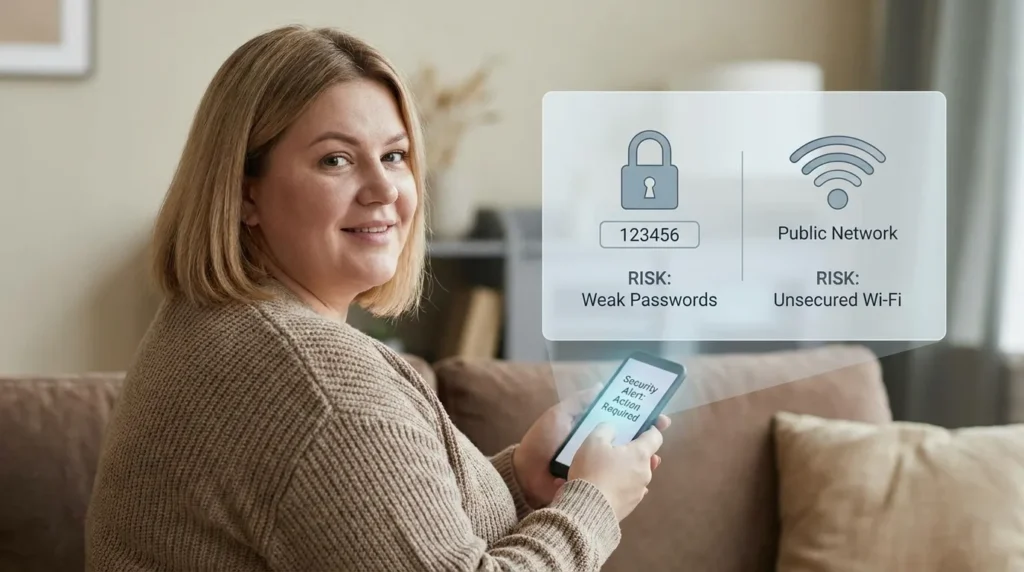
The Five Mistakes That Quietly Undo All Your Other Security Work
Even people who take security seriously fall into a few common traps. Here are the ones worth watching for.
- Turning on 2FA, then ignoring backup codes. If you lose your phone and never saved your backup codes, you can lock yourself out of your own account.
- Reusing a “strong” password across multiple accounts. One strong password, reused everywhere, is still only as safe as the weakest site that stores it.
- Uploading over unsecured public Wi-Fi without protection. This is where a large share of account exposure happens, and it connects directly to the habits covered in our guide on protecting yourself from identity theft on public Wi-Fi.
- Never checking connected devices or login history. An old phone or a device you sold months ago may still have active access if you never revoked it.
- Assuming your home network is automatically safe. A cloud account is only as secure as the network it’s accessed from, which is why a properly secured home Wi-Fi network matters just as much as the account settings themselves.
Skipping any one of these doesn’t guarantee a problem. But each one removes a layer of protection you were probably counting on, and most people don’t notice the gap until something has already gone wrong.
Security rarely fails all at once. It fails one skipped step at a time, until the gaps line up.
It’s also worth running an occasional check for hidden spyware on your personal computer, since even a perfectly configured cloud account can’t protect you if something on your device is recording your keystrokes before you ever hit upload.
Quick Answers to the Questions You’re Probably Still Asking
What is the safest way to store personal documents?
Combine a strong, unique password, two-factor authentication, and file-level encryption for anything truly sensitive. No single tool covers all three on its own.
Can hackers access cloud storage?
Yes, most often through a reused or leaked password rather than a direct attack on the provider itself. This is why account-level protection matters as much as the provider’s own security.
What are the top 3 cloud security risks?
Weak or reused passwords, unsecured public Wi-Fi access, and forgotten third-party app permissions are the three most common paths in.
What should not be stored on the cloud?
Unencrypted Social Security numbers, full financial account numbers, and master password lists should never sit in a cloud folder without file-level encryption first.
How to keep your cloud storage secure?
Follow the seven-step plan from Part 1, revisit your connected apps and shared links every few months, and treat the same habits that keep online banking secure as your baseline for any account holding sensitive documents.
You Don’t Need to Be a Security Expert to Get This Right
Everything in this guide adds up to about thirty minutes of setup, followed by a five-minute check-in every few months. That’s a small trade for the peace of mind of knowing your documents are actually protected, not just uploaded and hoped for.
Start with one step today. A stronger password, two-factor authentication turned on, or a single sensitive file encrypted before it goes anywhere near the cloud.
None of these changes require special equipment or a technical background. They require twenty focused minutes, and a willingness to treat your cloud account with the same care you’d give a filing cabinet full of your most important papers.
You don’t have to do everything on this list tonight. You just have to start, and then keep going one habit at a time.
You do not need to be a tech genius to feel safe again. I felt a huge weight lift off my shoulders once I just turned on 2FA and fixed my main password. Pick one thing from this list and do it right now—you will sleep so much better tonight knowing your private life actually stays private.
Disclaimer: This article is provided for general informational and educational purposes only and does not constitute professional cybersecurity, legal, or financial advice. While every effort has been made to ensure accuracy at the time of writing, technology, software features, and provider policies change frequently. Securely Life is not responsible for any loss, damage, or security incident that may result from actions taken based on this content. For guidance specific to your situation, consult a qualified cybersecurity or IT professional.