I still remember the night I got the email that made my stomach drop: “New sign-in to your account from a device we don’t recognize.” My old email password had been the same one I’d used since college, and I found out later it had leaked in a data breach years earlier.
I spent that whole weekend changing passwords on every account I could think of, terrified I’d missed one. That scare is exactly why I turn on two-factor authentication for everything now, no exceptions.
You created a strong password. You made it long, you added a few symbols, and you felt safe.
That feeling of safety is an illusion.
Every year, billions of passwords get exposed in data breaches. Your email password from three years ago might already be sitting in a hacker’s database right now, waiting to be tested against your bank login, your Amazon account, and your social media pages. This is called credential stuffing, and it works because most people reuse passwords across multiple sites.
If you want a full picture of how exposed your daily habits might be, our beginner’s digital safety guide breaks down the most common blind spots people miss. And if a stolen password has ever made you nervous, the Federal Trade Commission confirms that a password alone is no longer considered enough protection for any important account.
The Real Cost of Weak Account Security
Most people don’t think about account security until something goes wrong. By then, the damage is already done.
Here’s what usually happens when an account gets hacked:
- Your email gets used to reset passwords on your banking, shopping, and social media accounts
- Your contacts receive scam messages that look like they came from you
- Your personal photos, private messages, and saved payment details become exposed
- You spend days or weeks trying to prove your identity and recover your accounts
The problem gets worse because people often search for help using the wrong terms, or they follow outdated advice from old blog posts. Some sites still claim a “strong password” is the only thing you need. That advice was true a decade ago. It isn’t true now.
How This Affects Your Peace of Mind
Losing control of an account isn’t just a technical problem. It’s a stressful, personal experience.
You start wondering who read your private messages. You worry about whether your bank details were seen. You question whether your family’s photos are now sitting on someone else’s hard drive.
A single stolen password can unlock years of your personal history in seconds. Two-factor authentication is the lock that keeps that door shut even when the key gets copied.
This anxiety is completely normal, and you’re not alone in feeling it. Millions of people go through this every year, and most of them later say the same thing: they wish they had turned on an extra layer of protection sooner. The good news is that fixing this takes less time than reading this article.
If you’ve ever worried about someone accessing your camera or personal accounts without permission, you might also want to read our guide on detecting hidden spyware on your computer, since account takeovers and spyware often go hand in hand.
Setting Up Two-Factor Authentication: A Step-by-Step Approach
Now let’s fix this. Two-factor authentication, often shortened to 2FA, adds a second checkpoint after your password. Even if someone steals your password, they still can’t get in without that second piece.
Setting it up takes about five minutes per account. Here’s exactly how to do it.
Step 1: Choose an Authenticator App Instead of Text Messages
Many services offer to send you a code by text message. This feels convenient, but it’s the weakest form of 2FA.
Text-based codes can be intercepted through a technique called SIM swapping, where a scammer tricks your phone carrier into transferring your number to their device. Once that happens, they receive your codes instead of you.
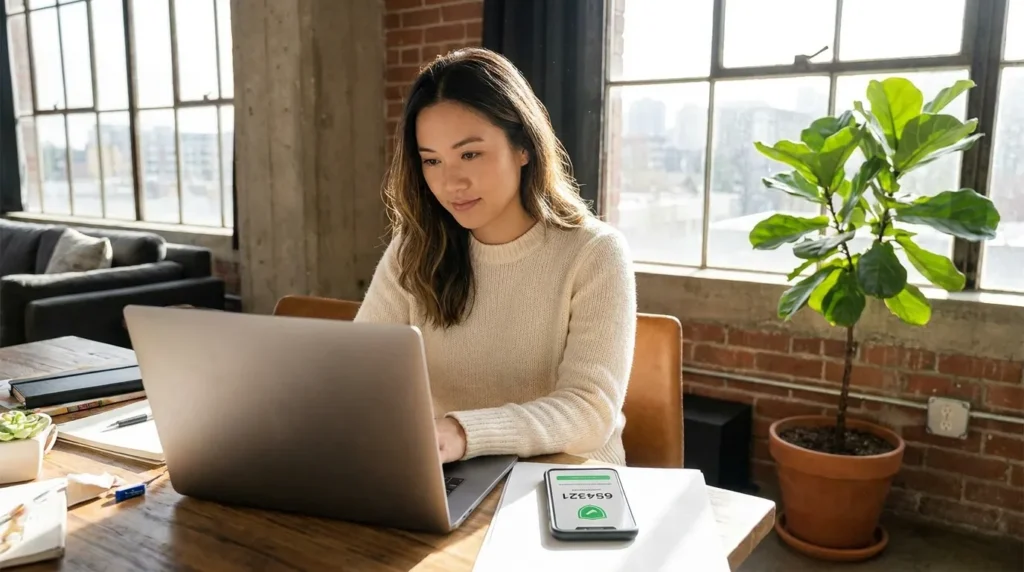
Instead, download a dedicated authenticator app like Google Authenticator, Microsoft Authenticator, or Authy. These apps generate a new 6-digit code every 30 seconds, directly on your device, with no phone signal required.
Practical tip: Install the app before you start turning on 2FA anywhere. This way, you can scan each account’s QR code right away instead of stopping halfway through.
Pro tip from personal trial and error: I used to rely on text message codes because they felt easier, until I read about SIM-swapping and realized my phone number alone wasn’t a safe lock.
Switching to an authenticator app took me about ten extra minutes total, and it’s the single change that made me stop worrying every time I heard about another company getting hacked. If you only fix one thing today, fix this.
Want to see this done in real time? Watch exactly how to set up an authenticator app in under five minutes below.
Step 2: Turn On 2FA for Your Email Account First
Your email account is the master key to almost everything else you own online. Most password reset links get sent there, so it should always be the first account you protect.
To do this on a Google account, go to your Google Account Security page, select 2-Step Verification, and choose your authenticator app as the method. Apple and Microsoft accounts follow a nearly identical process inside their own Sign-In & Security settings.
Once your email is locked down with 2FA, every other account connected to it becomes much harder to break into.
For a deeper walkthrough on picking the right tools for daily protection, our article on why you need a password manager for every account pairs well with 2FA, since the two work best together.
Step 3: Save Your Backup Codes Somewhere Safe
When you set up 2FA, most services give you a list of one-time backup codes. These exist for one reason: to get you back into your account if you lose your phone.
Don’t skip this step. Write these codes down on paper, or store them in an encrypted note, and keep them somewhere separate from your phone.
According to Google’s official account security guidance, losing both your phone and your backup codes at the same time is one of the most common reasons people get permanently locked out of their own accounts.
Once your email and main accounts are covered, it’s worth reviewing your social media privacy settings too, since these platforms are often the next target after email.
Beyond the Basics: Locking Down Every Corner of Your Digital Life
Turning on 2FA for your email is a great start. But real protection comes from covering every account that matters, not just one.
Think of your online life as a house with many doors. A locked front door doesn’t help if you leave the back door wide open.
Extend Protection to Your Banking and Financial Apps
Your financial accounts deserve the strongest security you can give them. Most banks now offer 2FA, but many customers never turn it on because it isn’t required by default.
Log into your banking app or website and look for a Security or Login Settings section. Enable two-factor authentication there using your authenticator app, not text messages, whenever the option exists.
If you want a complete walkthrough on protecting your money online, our guide on securing your online banking covers additional steps beyond just 2FA, including how to spot fake banking apps and phishing emails.
Protect the Network Your Devices Connect To
Here’s something people often miss: 2FA protects your accounts, but it doesn’t protect the network you’re using to access them.
If your home Wi-Fi has a weak or default password, someone nearby could still watch your traffic or attempt to break into your router. This won’t bypass 2FA directly, but it creates other openings a determined attacker can use.
Take five minutes today to check your router’s admin settings and change the default password if you haven’t already. Our detailed walkthrough on how to protect your home Wi-Fi network shows you exactly where to find these settings, even if you’ve never touched your router before.
Be Extra Careful on Public Wi-Fi
Coffee shop Wi-Fi, airport hotspots, and hotel networks are convenient, but they’re also prime hunting grounds for attackers trying to intercept your login information.
Even with 2FA enabled, it’s smart to avoid logging into sensitive accounts like your bank on public networks whenever possible. If you must, use a trusted VPN first.
For a deeper look at the specific risks of public networks, check out our guide on preventing identity theft on public Wi-Fi. It pairs perfectly with the account protection steps you just set up.
Don’t Forget Your Smart Home Devices
Your smart doorbell, security camera, and smart locks are also connected to accounts that can be hacked. Many people set up 2FA on their email but completely forget these devices exist online too.
According to guidance from the Cybersecurity and Infrastructure Security Agency, connected home devices are increasingly targeted because owners assume they’re too small to matter to hackers. That assumption is wrong.
If you own any smart security equipment, our guide on how to secure your smart home devices walks through account protection steps specific to these gadgets.
The strongest security setup isn’t the one with the most steps. It’s the one you actually keep using every single day.
Mistakes That Quietly Undo Your Security Setup
Even people who set up 2FA correctly can weaken it without realizing it. Watch out for these common slip-ups.
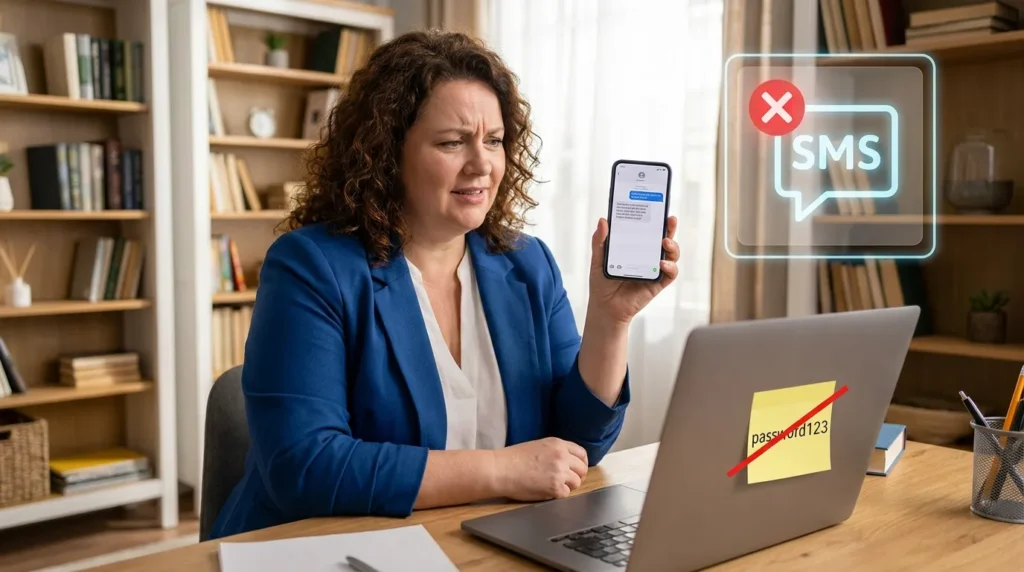
- Using text messages for every account. SMS codes are better than nothing, but they remain vulnerable to SIM-swapping. Switch to an authenticator app wherever it’s offered.
- Storing backup codes in your email inbox. If your email gets compromised, those codes become useless as a safety net. Keep them somewhere separate.
- Ignoring old, unused accounts. An old social media account with a weak password and no 2FA is still a door hackers can walk through, even if you never use it anymore.
- Reusing the same authenticator app account across devices without protection. If you don’t lock your phone with a passcode or fingerprint, anyone who picks it up has access to every code inside your authenticator app.
- Assuming 2FA makes you unhackable. Two-factor authentication blocks most attacks, but phishing sites designed to steal your code in real time still exist. Always double-check the website address before entering any login details.
Skipping these details doesn’t just weaken your account. It can undo the entire point of setting up 2FA in the first place. A single overlooked account often becomes the exact one an attacker finds first.
Your Two-Factor Authentication Questions Answered
What’s the main disadvantage of two-factor authentication?
The biggest downside is convenience. You’ll need your phone or authenticator app every time you log in from a new device, which adds a few extra seconds to your routine. Most people find this small trade-off worth the added protection.
Can I still get hacked if I have two-factor authentication?
Yes, though it’s much harder. Sophisticated phishing attacks can sometimes trick users into entering their 2FA code on a fake website. Always check that you’re on the correct, official site before entering any login information.
How do I know if my 2FA is enabled?
Check your account’s security settings page. Most services clearly show a “Two-Factor Authentication” or “2-Step Verification” status, along with the option to turn it on or off.
What happens if I can’t access my two-factor authentication code?
This is exactly why backup codes exist. If you saved them during setup, you can use one to regain access. Without them, you’ll need to go through the account provider’s identity verification process, which can take longer.
How do I reset my two-factor authentication?
Most platforms let you disable and re-enable 2FA from the same security settings page, usually after confirming your password and current login method. If you’ve lost access completely, you’ll typically need to verify your identity through the provider’s account recovery process.
Your Accounts Are Worth Protecting, Starting Today
You’ve just learned more about account security than most people ever will. That knowledge only pays off once you actually use it.
Pick one account right now. Your email is a great place to start. Turn on two-factor authentication before you close this tab.
Then come back tomorrow and do one more. Small, consistent steps like this build real, lasting protection over time, without overwhelming you in a single afternoon.
You don’t need to be a security expert to stay safe online. You just need the right habits, applied consistently. You now have them.
Looking back, I wish someone had told me how simple this actually was before I learned it the hard way. Setting up two-factor authentication took less time than my morning coffee, and it gave me a level of calm I didn’t have before. Start with one account today. Future you will be glad you did.
Safety Disclaimer: This article is provided for general informational and educational purposes only and does not constitute professional cybersecurity, legal, or financial advice. While every effort has been made to ensure accuracy at the time of writing, security settings and platform interfaces may change over time. Securely Life recommends consulting your specific service provider’s official support resources or a qualified security professional for guidance tailored to your individual situation. We are not liable for any loss or damage arising from the use of the information provided in this post.