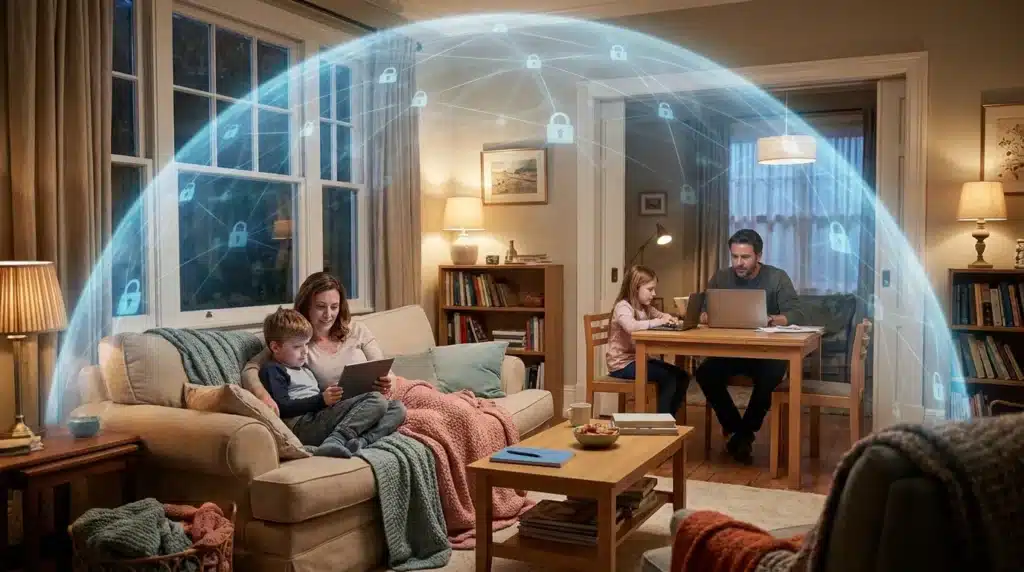
Think about your home for a second. You lock your front door every night. You might even have a security camera or a loud alarm.
But there is a digital door in your house that might be wide open right now.
Your home Wi-Fi network is the gateway to your entire life. It connects your bank accounts, your private photos, and your children’s devices to the world.
If that connection is weak, you are essentially leaving your digital wallet on the front porch.
The scary part is that you cannot see a digital thief. They don’t need to break a window to get inside.
They can sit in a car down the street and slide into your life through a weak Wi-Fi signal.
Why Most People Fail to Secure Their Connection
- The Factory Settings Trap: Internet companies often give out routers with default factory settings that are very easy for hackers to guess.
- The Bottom-Label Illusion: Many people believe that the complex password printed on the bottom of the router is enough to keep them safe permanently.
- Tech Jargon Overwhelm: Most homeowners find technical settings too confusing and just ignore them until a breach happens.
- Misleading Online Advice: There is a lot of bad advice online that makes people think they need a computer science degree to stay safe.
- Convenience Over Security: We often prioritize high speed and instant convenience over the actual safety of our private data.
- Automated Drive-By Hacking: Hackers use automated software tools to scan neighborhoods, actively looking for the weakest Wi-Fi signals.
How Digital Insecurity Affects Your Mental Peace
- Constant Paranoia: You start to wonder if every weird email or slow connection is a sign that someone is watching your screens.
- Loss of Control: Seeing a stranger access your local private files feels like an absolute violation of your home.
- Financial Stress: The thought of someone stealing your banking info while you sleep is enough to cause sleepless nights.
- Worry for Family: You constantly worry about what malicious content your kids might be exposed to if a stranger takes over your router.
- Lack of Trust: You stop feeling safe using the internet, turning a vital modern tool into a source of constant anxiety.
It is completely normal to feel overwhelmed by all this tech talk. You bought a router to enjoy movies and talk to friends, not to become a cybersecurity expert.
But the reality is that the digital world is not always a friendly place. Hackers are always looking for the path of least resistance. If your neighbor’s Wi-Fi is harder to get into than yours, they will pick yours every time.
“Think of your Wi-Fi as the electronic skin of your home. It needs to be tough, smart, and well-guarded.”
The struggle is real, but the solution is much simpler than you think. By the time you finish this guide, you will have a digital fortress. You will be able to stream, work, and play without that nagging feeling of being watched.
Your Blueprint for an Unbreakable Connection: 8 Essential Steps
Step 1: Changing the Default “Admin” Keys
When you get a new router, it comes with a username and password to access the internal settings. Most of the time, the username is simply “admin” and the password is “password” or “1234.”
Hackers have automated lists of these default logins for every brand of router ever made. If you don’t change this, you are leaving the master key under the mat. Anyone who can see your Wi-Fi signal can log into your router’s brain.
The Solution: Unique Control Credentials
You must log into your router’s web gateway interface and change these credentials immediately. Make the admin password long, completely unique, and completely separate from your daily Wi-Fi password.
Take five minutes to change it, and you have already blocked 90% of simple automated attacks.
Step 2: Strengthening Your Encryption Standards
Encryption is just a way of scrambling your data. It makes sure that if someone catches your Wi-Fi signal out in the air, they cannot read it. It looks like total gibberish to them.
There are different levels of encryption, and some are old and broken. You should never use WEP or basic WPA. They are so outdated that a modern smartphone can break into them in seconds.
The Solution: Enforce WPA3 or WPA2-AES
Most modern routers offer WPA2 or WPA3. You should always choose WPA3-Personal if your devices support it. It is the newest and toughest cryptographic lock available for home users today.
By choosing the right encryption, you are making your data unreadable to outsiders. This keeps your financial data and private messages completely safe from prying eyes.
Step 3: Killing the “Easy Entry” Features (WPS & Remote Management)
Many routers have a physical button called WPS (Wi-Fi Protected Setup). It was designed to let you connect devices by just pushing a button instead of typing a password. While it sounds helpful, it is a massive security hole.
WPS uses a simple 8-digit numeric PIN that hacker software can crack in hours. Once they crack the PIN, they can see your real Wi-Fi password. It is like having a secret back door with a cheap plastic latch.
The Solution: Disable Convenience Vulnerabilities
Go into your wireless settings and disable WPS entirely. While you are there, look for a setting called “Remote Management” and turn it off. Your router settings should only be accessible by someone who is physically inside your house.
Step 4: Isolating Threats via a Dedicated Guest Network
Have you ever had a friend come over and ask for your Wi-Fi password? You probably gave it to them without thinking. But if their phone has malware running in the background, it can quietly spread to your computers once they connect.
The Solution: Network Segmentation
Most modern routers allow you to create a second Wi-Fi signal called a Guest Network. It has its own name, its own password, and is completely isolated from your main local network.
Your visitors get full internet access, but they cannot see your printer, your backup drives, or your private folders.
“It is like having a nice guest house in your backyard. Your visitors have a place to stay, but they don’t get a key to your main bedroom.”
Pro-Tip: You should also put all your smart home gadgets (smart bulbs, cheap Wi-Fi cameras) on this isolated guest network. If a hacker exploits a flaw in a smart light bulb, they still cannot access your primary banking laptop.
Step 5: Updating Your Router’s Firmware Frequently
Your router is actually a small computer running specialized software called firmware. Just like your phone operating system, developers frequently find critical security holes in router firmware that hackers exploit.
The Solution: Patching the Cracks
Check your router configuration page for updates at least once every few months, or enable the “Auto-Update” feature if available. Think of these updates as free structural upgrades to your digital walls.
Step 6: Choosing an Anonymous Wi-Fi Name (SSID)
When setting up your Wi-Fi, you get to choose its broadcast name, known as the SSID. Many people use their last name or their apartment number. This is a bad idea because it tells local actors exactly who owns that network signal.
The Solution: Stay Bland and Anonymous
Give your Wi-Fi a boring, completely random name. Avoid your name, your street address, or your router brand. Names like “Blue_Cloud” or “Static_Signal” work perfectly. It keeps you completely anonymous to people passing by outside.
Step 7: Calibrating and Managing Your Signal Strength
Did you know you can control how far your Wi-Fi signal travels physically? If you live in a small apartment or a close-knit neighborhood, you don’t need your wireless signal to blast three houses down the street.
The Solution: Lower Transmit Power
Go into your advanced wireless settings and adjust the Transmit Power or Eco-Mode. Set it so you have great coverage inside your rooms, but the signal completely fades away once you step past your property line. If a hacker cannot catch the physical signal from the street, they cannot attempt to attack it.
Step 8: Designing a Powerful Passphrase Strategy
Your Wi-Fi password is the primary physical lock on your network. Never use common words, family names, or sequential numbers. A strong Wi-Fi password must be at least 12 to 15 characters long.
The Solution: Use Random Passphrases
Instead of a single word, use a passphrase consisting of a string of random words, numbers, and symbols (e.g., “Purple-Bicycle-Rain-77!”). It paints a clear picture in your mind for easy recall but remains mathematically impossible for a hacker’s brute-force computer script to guess.
Advanced Guards for Your Digital Fortress
Now that you have the foundational steps down, it is time to think like a professional security analyst. You can elevate your home network to a corporate safety level using two built-in architectural features.
Filtering Access with MAC Addresses
Every single device in the world has a permanent, unique hardware fingerprint known as a MAC address. You can configure your router to strictly enforce MAC Address Filtering.
Think of this like an exclusive club with a strict guest list. Even if a stranger somehow steals your complex Wi-Fi password, the router will completely ignore their connection request because their device’s hardware fingerprint is not on your approved whitelist.
While hardening your router blocks external unauthorized devices, you must also secure your personal hardware internally. It is highly recommended to review the hidden settings to stop apps from tracking your phone to ensure your mobile devices aren’t leaking background analytical data to third-party companies.
Activating the Built-In Hardware Firewall
Most consumers buy a router and never realize it contains a robust, built-in security guard called a hardware firewall. This tool inspects every single incoming package of data and instantly drops anything uninvited or suspicious.
The Action Plan:
- Log into your router settings and ensure the SPI (Stateful Packet Inspection) firewall is toggled ON.
- Enable NAT Filtering to completely hide the internal IP addresses of your personal computers from the public web. To an outside hacker scanning the internet, your entire home network will appear as a single, impenetrable brick wall.
Staying Safe for the Long Haul
Excellent digital security is not a one-time project; it is a continuous lifestyle habit. To ensure your digital walls remain tall and strong, implement these three simple maintenance routines:
- The Weekly Reboot: Make it a habit to restart your router once a week. Many modern malware strains live strictly in the router’s temporary volatile memory (RAM). A quick power cycle completely wipes that memory clean and kicks out any hidden malicious processes.
- The Monthly Device Audit: Once a month, open your router’s mobile app or admin dashboard and review the “Connected Devices” list. If you spot an active profile you do not recognize, change your Wi-Fi password immediately.
- Continuous System Hardening: Securing your router protects your local environment, but you must maintain the same level of caution when transitioning outside your home. Make sure you understand the simple steps to prevent identity theft on public Wi-Fi to keep your personal data shielded on open commercial networks.
The 5 Biggest Blunders That Leave Your Wi-Fi Wide Open
- Passwords That Tell a Story: Using your pet’s name, your favorite sports team, or birth years makes you highly vulnerable to “dictionary attacks.” Your password must be a completely random sequence, not personal trivia.
- Placing the Router Near a Window: Putting your router next to an external window accidentally leaks your strongest wireless signal out into the street. Move the router to the center of your home to maximize indoor coverage and minimize outdoor leakage.
- Trusting “Free” Optimization Software: Downloading unverified “free tools” that promise to speed up or secure your Wi-Fi is incredibly dangerous. Many of these programs are spyware utilities designed to log your traffic. Stick strictly to your official manufacturer app.
- Leaving UPnP Turned On: UPnP (Universal Plug and Play) allows smart devices to automatically open communication ports through your firewall. Unfortunately, malware frequently exploits UPnP to create permanent, silent back doors into home networks. Turn UPnP OFF in your advanced settings.
- Sharing Your Main Network Password: Handing your primary Wi-Fi credentials to casual visitors exposes your entire local architecture. If you need to shield your personal hardware from external vulnerabilities, learn how to secure your online banking from digital thieves by maintaining strict device isolation and separate credential channels.
Common Wi-Fi Security Questions Answered
Can someone see what I am doing on my home Wi-Fi?
If your network encryption is completely turned off, anyone nearby can capture your wireless data packets out of the air. However, if you are running active WPA2 or WPA3 encryption, your local traffic is fully scrambled and unreadable to outsiders.
Does hiding my Wi-Fi name (SSID) make it safer?
Not significantly. Hiding the SSID only conceals the network name from standard consumer devices. Anyone using basic network analyzer software can spot the hidden beacon signal instantly. A hidden SSID can also drain your phone’s battery faster as it constantly transmits requests looking for the hidden network.
Is it okay to use my neighbor’s Wi-Fi if I know the password?
We strongly advise against it. You have zero control over their internal firewall configurations, firmware updates, or who else is sharing that network. Their system could be actively compromised, exposing your device to local network attacks.
Why is my internet slow after turning on advanced security?
Advanced cryptographic standards like WPA3 require slightly more processing power from the router’s internal chip. If you are using an incredibly old router, you might notice a marginal drop in speed, but the massive leap in data protection is well worth the minor trade-off.
Your New Beginning as a Secure Homeowner
You have done a massive amount of valuable work today. By reaching the end of this guide, you now understand home network security better than 90% of daily internet users. You have the blueprint and the concrete knowledge required to protect your family’s data.
Security is not about living in fear; it is about being prepared. It is about taking total control of your environment so you can browse, stream, and work with absolute peace of mind.
Your Tonight Action Plan:
- Log into your router administration panel right now.
- Update the default Admin Password to a unique passphrase.
- Switch your wireless encryption protocol to WPA3-Personal or WPA2-AES.
- Activate an isolated Guest Network for all visitors and smart home tech.
Take it one single step at a time. Every change you implement makes your digital shield a little bit thicker. Go ahead and lock those digital doors—you have earned your peace of mind!