I remember sitting in my living room late at night when my laptop’s webcam light suddenly flickered on for a split second. My heart stopped because I wasn’t using any apps that needed the camera.
That one scary moment made me realize how exposed I really was, and I spent the next four hours frantically changing every password I owned. I never want you to feel that same gut-wrenching worry about someone watching you.
You close your laptop lid at night. But you still feel a small knot in your stomach.
Did you leave your webcam covered? Did that email you clicked yesterday actually come from your bank? That unease is not paranoia. It is a normal reaction to living in a world where your laptop holds your bank logins, your family photos, your work files, and your private messages, all in one place.
Millions of people search for help only after something already feels wrong — a slow computer, a strange pop-up, a password that suddenly stops working. This is exactly why we built our ultimate digital safety guide for beginners, so you have one clear place to start instead of piecing together advice from ten different websites.
A laptop is not just a device. For most people, it is the closest thing they have to a digital filing cabinet, photo album, and bank vault, combined into one. Protecting it is not optional anymore.
According to the Cybersecurity and Infrastructure Security Agency (CISA), simple habits like multi-factor authentication and strong passwords stop the majority of everyday cyberattacks before they even start. The rest of this guide breaks those habits down into 10+ essential ways anyone can follow, starting today.
How to Tell If Your Laptop Has Been Hacked
Before you fix anything, find out if something is already wrong. A hacked laptop rarely announces itself loudly. It leaves small, quiet clues instead.
Common Signs Your Computer Has Been Hacked
Watch for these patterns, especially if more than one shows up at the same time:
- Your laptop runs hot or slow for no clear reason.
- Programs open on their own, or your cursor moves when your hands are off the mouse.
- New browser extensions or toolbars appear that you never installed.
- Passwords that used to work suddenly stop working.
- Unfamiliar charges show up on accounts linked to that device.
Can I Tell If Someone Is Remotely Accessing My Computer?
Yes, in most cases. Check your operating system’s active login sessions, since both Windows and Mac let you see recent sign-ins from other locations.
Look for programs running that you did not open, or network activity when you are not actively browsing. A sudden spike in your internet usage with no clear cause is often a sign that something is sending data out in the background.
Can Someone Spy on My Computer Without Me Knowing?
Yes. Spyware is built specifically to run silently, often without any obvious symptoms at first.
If your webcam light turns on by itself, that is a serious red flag. Our guide on how to prevent unauthorized webcam access walks you through exactly what to check and how to shut it down for good.
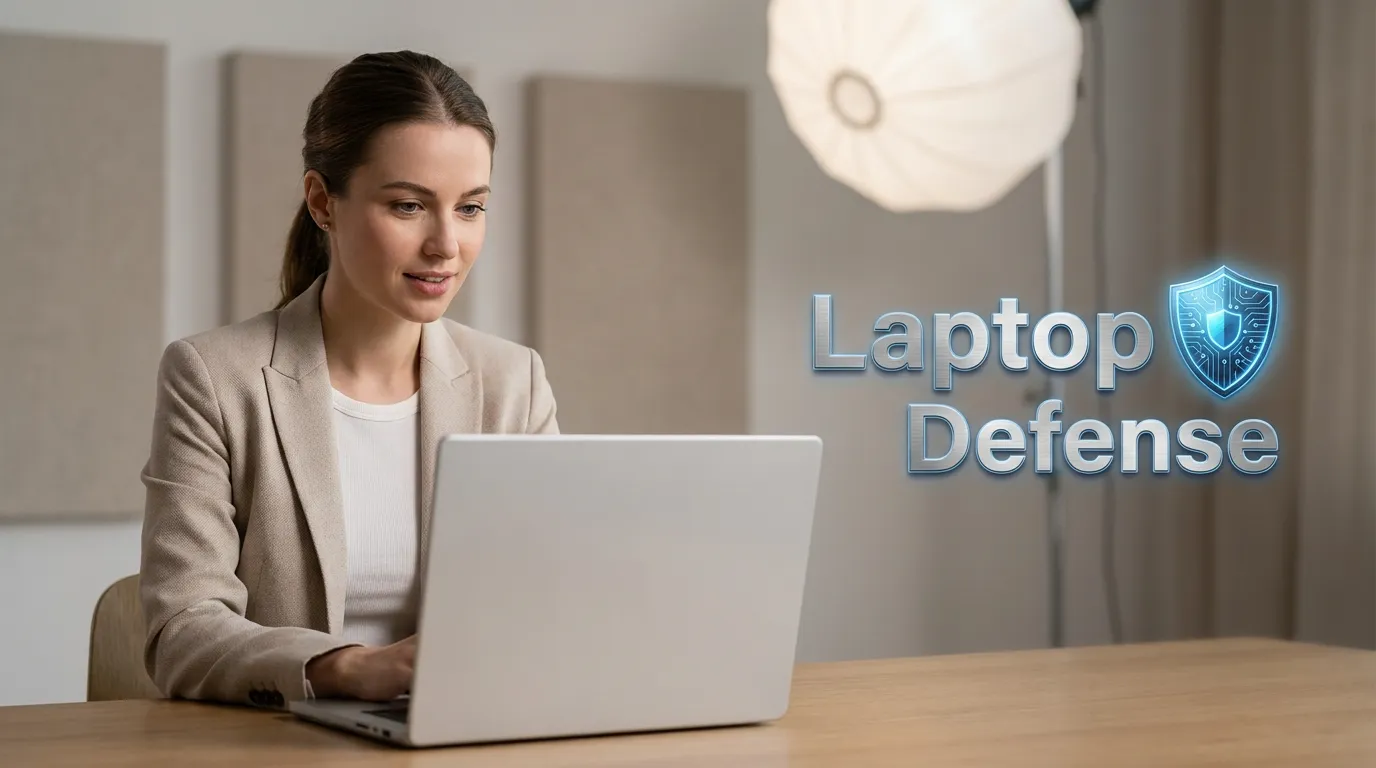
10+ Ways to Stop Hackers from Accessing Your Personal Laptop
Think of laptop security like locking up a house. One lock helps. Several layers working together keep intruders out for good.
1. Use a Firewall and Keep It Enabled
Your laptop’s built-in firewall blocks unwanted traffic before it ever reaches your files. Confirm it is switched on in your security settings, and never disable it just to make a download go faster.
2. Install Reliable Antivirus/Anti-Malware Software
Run a full scan once a week, not just when something feels off. Catching a problem early is always easier than cleaning up after it spreads across your files and accounts.
3. Secure Your Home Wi-Fi Network
Here is a trick I wish I knew years ago: never name your home Wi-Fi something like “The Smith Family Home.” It basically tells hackers exactly whose data they are trying to steal. Now, I use a completely random name that doesn’t link to my identity at all, and it’s one of the easiest ways I’ve found to stay invisible to neighbors with bad intentions.
An unsecured router is like leaving your front door unlocked while you sleep. Change the default admin password, turn on WPA3 encryption if it is available, and give your network a name that does not reveal your address.
The Federal Trade Commission (FTC) recommends keeping router firmware updated automatically, since outdated firmware is one of the most common entry points attackers use to reach home devices.
4. Create Strong, Unique Passwords (+ Password Manager)
A password like your pet’s name plus your birth year takes almost no effort to guess. Switch to long, random passwords for every account, and never reuse the same one twice.
Instead of trying to remember fifty different passwords, a password manager remembers one for you and does the rest safely. We break down exactly why you should use a password manager for every account in a separate guide.
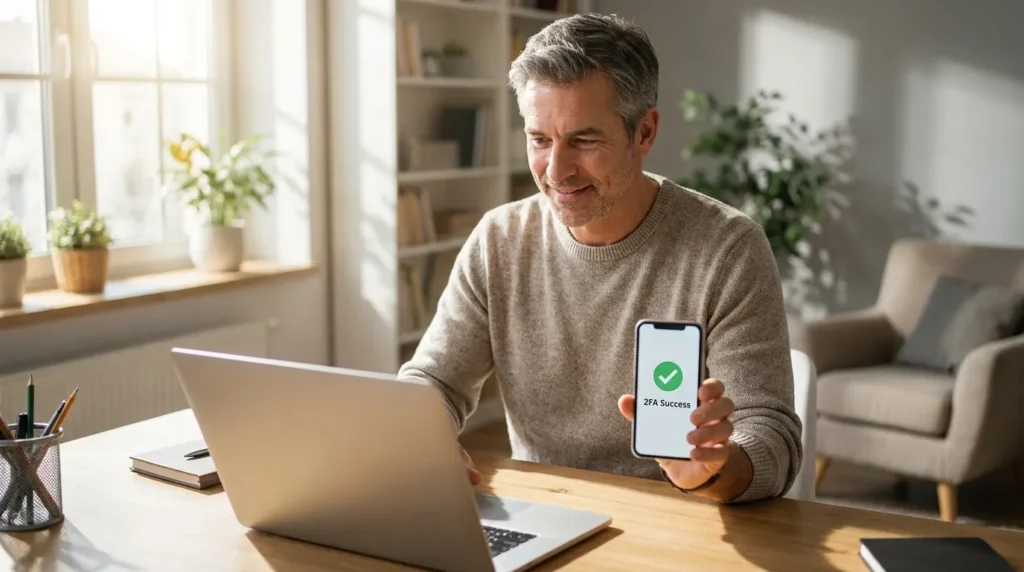
5. Enable Multi-Factor Authentication (MFA)
Even if a hacker steals your password, MFA asks for a second proof, like a code sent to your phone, before letting anyone in. Our walkthrough on how to set up two-factor authentication takes less than ten minutes to follow.
6. Keep Your OS and Software Updated
Software updates are not just new features. Most updates exist to patch security holes that hackers actively search for.
Turn on automatic updates for your operating system, your browser, and any security software you run. Set a reminder to restart your laptop weekly, since many updates only fully install after a restart.
7. Set a UEFI/BIOS Password and Encrypt Your Hard Disk
A login password alone does not stop someone who removes your hard drive and plugs it into another computer. A UEFI or BIOS password blocks changes to your startup settings, while full-disk encryption scrambles your files so they stay unreadable without your key.
Both Windows and Mac laptops offer built-in encryption tools that take only a few minutes to turn on.
8. Avoid Phishing Emails and Suspicious Links
Real banks and companies rarely demand instant action through an email link. Check the sender’s full email address, not just the display name, before clicking anything.
A quick real-world example: a small business owner once clicked a link in an urgent-looking email that copied her exact bank’s logo. That single click installed spyware that read her messages for months before she noticed anything wrong.
9. Use a VPN on Public Wi-Fi
Treat every public network as untrusted, including at coffee shops and airports. A trusted VPN adds a layer of encryption between your laptop and the outside world, so anyone else on that network cannot easily see your traffic.
10. Physically Lock Your Laptop When Unattended
Digital protection means little if someone can simply pick up your unlocked laptop. Set a short auto-lock timer, use a physical cable lock in shared spaces, and never leave your laptop open and unattended in public.
Working through this list one item at a time, rather than trying to do everything at once, builds a laptop that is genuinely difficult for a hacker to break into. None of these steps require special training. They just require a bit of consistency, the same way locking your front door becomes second nature over time.
Pick two or three items from this list and set them up today. You do not need to finish everything in one sitting, and trying to do so often leads to giving up halfway through. Small, steady progress beats a rushed weekend project every time, especially when the goal is a habit you plan to keep for years.
How to Block Unauthorized Remote Access to Your Laptop
Spotting trouble and locking the front door solves most of the problem. This next part covers the back doors most people forget entirely.
If you are worried that someone might be controlling your screen right now, stop and watch this. This short video walks you through the exact settings you need to flip to block remote intruders and take back control of your laptop instantly.
How Do I Stop Someone from Accessing My Laptop Remotely?
Start by disconnecting from the internet the moment you suspect remote access. This cuts the connection instantly, even before you know exactly how the attacker got in.
Next, change your passwords from a separate, trusted device, not the laptop you suspect is compromised. Typing a new password on an already-hacked machine can hand that new password straight to the attacker too.
Disable Remote Desktop Features (Windows/Mac)
Both Windows and Mac ship with built-in remote access tools, and most people never touch these settings. On Windows, check Settings > System > Remote Desktop and turn it off unless you use it on purpose. On Mac, check System Settings > General > Sharing and disable Screen Sharing and Remote Login if you do not need them.
Leaving these features switched on, even unintentionally, is like leaving a spare key under the doormat. Most attackers who find it will use it.
Separate Your Digital Life Into Layers
Security professionals often talk about “least privilege,” which simply means giving each app or account only the access it truly needs, nothing extra.
In practice, this looks like using a separate browser profile for banking, away from the browser you use for everyday browsing and social media. It also means avoiding saved payment details inside random shopping sites.
Treat every account like a separate room in your house. You would not hand a stranger a master key just because they only needed to check the mailbox. Give access based on need, not convenience.
Encrypt Your Hard Drive for an Extra Layer of Protection
A login password alone does nothing if someone removes your hard drive and plugs it into a different computer. Full-disk encryption scrambles everything on your drive so it stays unreadable without your key, even if the drive is physically removed.
Windows offers this through BitLocker, and Mac laptops offer it through FileVault. Pair this with a safe backup, and our guide on how to store private documents in secure cloud storage shows you where to keep that backup protected too.
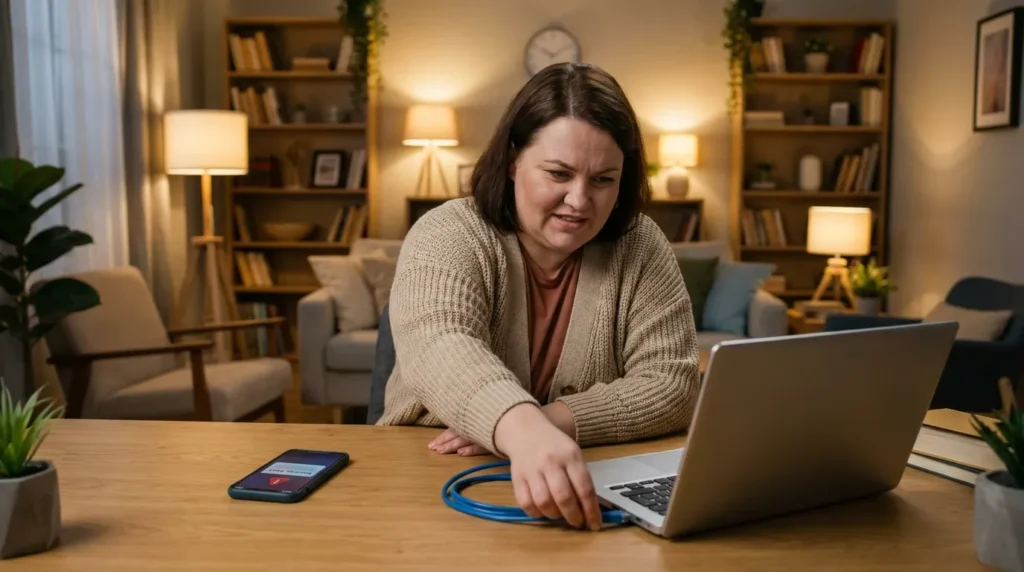
Emergency Steps — What to Do If Your Laptop Is Already Hacked
If you already see warning signs, do not wait to see if they go away on their own. Move through these steps in order.
Does Powering Off a Laptop Stop a Hacker’s Progress?
It can pause an active remote session right away, since most remote access tools need an open connection to keep working. But powering off does not remove malware already installed on your drive.
Treat a shutdown as a first response, not a full fix. Follow up with the steps below once your laptop is back on.
Immediate Actions: Disconnect, Scan, Reset Passwords
Disconnect from Wi-Fi first, then run a full antivirus scan before doing anything else on that device. Reset your most important passwords, starting with email and banking, from a separate trusted device.
Check your bank and card statements for charges you do not recognize, even small ones. Small test charges often appear before a much larger one follows.
Back Up Before You Ever Need To
Ransomware locks your files and demands payment to unlock them. The single best defense is not paying, it is having a backup that makes the ransom pointless.
Follow the simple 3-2-1 rule: keep three copies of important files, on two different types of storage, with one copy stored somewhere away from your main laptop. We walk through exactly how to set this up in our guide on the best ways to back up your data safely at home.
Small Habits That Quietly Undo All Your Hard Work
Even careful people fall into a few patterns that cancel out everything else they are doing right.
- Turning off security software “just for a minute.” That minute is exactly when an attack often slips through.
- Using the same recovery email or phone number for every account. If that single point gets compromised, every linked account becomes vulnerable at once.
- Skipping software updates on an old but “still working” laptop. A laptop that runs fine on the outside can be wide open on the inside.
- Ignoring small, unfamiliar charges on a linked card, assuming they will resolve on their own.
If you ever suspect your email or phone number leaked through one of these gaps, our guide on how to remove your personal information from the internet gives you a clear cleanup process to follow. According to the FBI’s Internet Crime Complaint Center (IC3), reporting suspicious activity quickly gives investigators a far better chance of tracing an attack back to its source, so do not wait if something feels wrong.
Quick Answers to Common Laptop Security Questions
What are the signs your computer has been hacked?
Look for unexplained slowdowns, programs you did not install, a webcam light turning on by itself, passwords that suddenly stop working, and unfamiliar charges on linked accounts.
Can I tell if someone is remotely accessing my computer?
Yes. Check your active login sessions in your operating system settings, and watch for programs running or network activity you did not start yourself.
How do I stop someone from accessing my laptop remotely?
Disconnect from the internet immediately, disable remote access features, change your passwords from a separate trusted device, and run a full antivirus scan before reconnecting.
Does powering off a laptop stop a hacker’s progress?
It can pause an active remote session right away, but it does not remove malware already installed. Follow up with a full scan and password reset once your laptop is back on.
Can someone spy on my computer without me knowing?
Yes, spyware is built specifically to run silently in the background. Our guide on how to detect hidden spyware on a personal computer walks you through the exact checks to run. Background research on malware shows it remains the tool behind most laptop break-ins, which is why catching it early matters so much.
Your Laptop Security Checklist, Ready to Save
Print this list, or save it somewhere you will actually see it again.
- Run a full antivirus scan weekly.
- Use a password manager with unique passwords for every account.
- Turn on multi-factor authentication everywhere it is offered.
- Keep your operating system and browser set to update automatically.
- Turn on full-disk encryption.
- Disable remote desktop access unless you use it on purpose.
- Back up your files using the 3-2-1 rule.
- Avoid public Wi-Fi for banking, or use a trusted VPN.
Pick two items from this list and set them up right now, before you close this tab. Your future self, sitting safely behind a locked-down laptop, will thank you for it.
You don’t have to fix everything in one day to be safe. Just start with one lock today, like turning on MFA, and you will sleep so much better knowing you’ve blocked the easiest path for hackers. Staying safe is a journey, and you have already taken the biggest step by finishing this guide and taking your privacy seriously.
Disclaimer: This article is provided for general educational and informational purposes only and does not constitute professional cybersecurity, legal, or financial advice. While every effort has been made to ensure accuracy, technology and threats change constantly, and no security method can guarantee complete protection against all forms of cyberattacks. Securely Life recommends consulting a certified cybersecurity professional or your device manufacturer’s official support channels for guidance specific to your situation. If you believe you are a victim of a cybercrime, report it to the appropriate authorities, such as the FBI’s Internet Crime Complaint Center (IC3), as soon as possible.