I was checking on my Golden Retriever, Max, through my Ring camera app late one night when, instead of my living room, a login screen I’d never seen before popped up. My stomach dropped. The activity log showed a sign-in from a city I’ve never visited — someone had been looking through the same lens I trusted to watch my own front door.
I spent the next hour changing every password I owned, hands actually shaking a little. That night is the reason I now treat my cameras like a locked front door, not just a gadget I plugged in once and forgot about.
Quick Answer: Believe it or not, most camera hacks trace back to a reused or default password, not some genius hacker cracking your firewall. Securing your setup means four things working together — a unique password on both your router and camera, a separate guest network for connected devices, two-factor authentication, and current firmware. Skip any one, and a hacker only needs to find that gap.
A weak Wi-Fi network is like leaving a key under the mat for every device in your house, not just the camera. Your doors are locked, but the digital front door is often wide open.
Living with that uncertainty changes daily habits in small ways:
- You start wondering if that “click” was the camera adjusting itself, not the wind
- Talking freely near your own devices starts to feel risky
- Some people cover lenses with tape or unplug the whole system out of frustration
- Parents feel a specific kind of guilt over a camera placed in a nursery
None of this is dramatic on its own. It’s just what happens when a device meant to make you feel safer quietly becomes a source of worry instead.
What Camera Companies Won’t Tell You The assumption: A well-known camera brand can’t be hacked. The reality: Big names like Ring have had real, documented cases of camera access by outsiders — usually not because company servers were broken into, but because someone reused an old, leaked password. The brand matters far less than your own habits around passwords and updates.
Security researchers at Verizon found that compromised credentials were the initial access point in 22% of the breaches they reviewed in their most recent Data Breach Investigations Report. That’s not a hacker breaking through fancy code — that’s a password reused from some other site, years ago, working against your camera login today.
Locking Down the Basics: Router and Camera Credentials
Why Does a Default Password Undo Everything Else?
A default password undoes every other security step because it’s the very first thing an automated scanning tool tries, and it works on thousands of homes an hour without a human ever touching a keyboard.
Every router and camera ships with a factory login — something like “admin” and “1234.” Here’s the thing most people skip: fixing this only takes a few minutes.
- Open a browser and type your router’s IP address into the bar — usually 192.168.1.1 or 192.168.0.1 (check the sticker on the router itself if neither works), then log into the admin settings today, not “this weekend”
- Create a username that doesn’t include your name or house number
- Set a password at least 12 characters long, mixing capital letters, numbers, and symbols
- Use a completely different password for the camera app itself — never reuse the router password
Pro Tip: I used to reuse one “strong-feeling” password across almost every account, thinking the numbers and symbols made it safe. Then I realized that if just one of those sites ever got breached, every account sharing that password was exposed too. Now a password manager like Bitwarden or 1Password generates a random one for each device, and I genuinely sleep better.
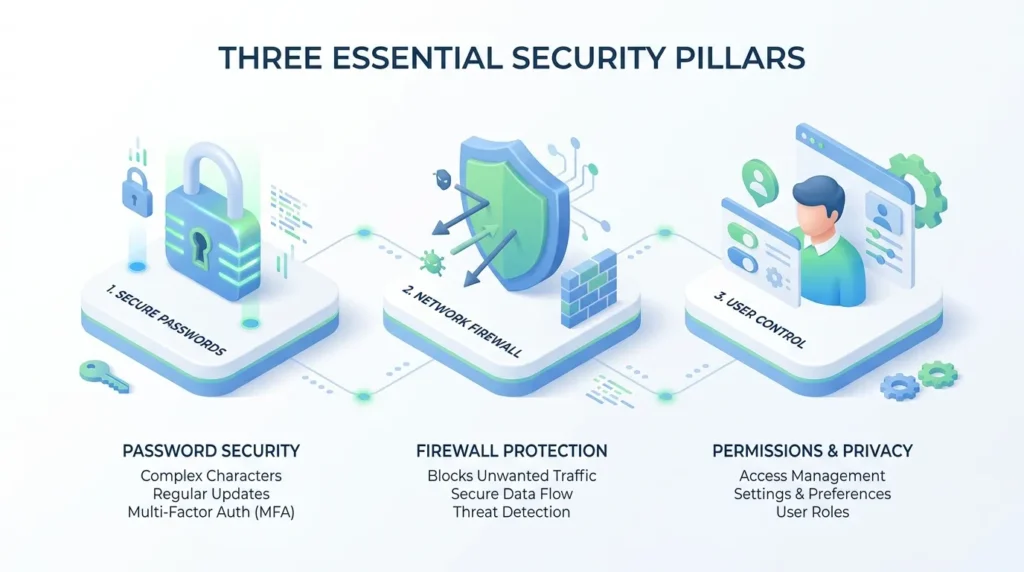
If your camera supports two-factor authentication, turn it on. Even with a stolen password, a hacker still needs a code sent to your phone to actually log in — one extra step for you, a wall for them.
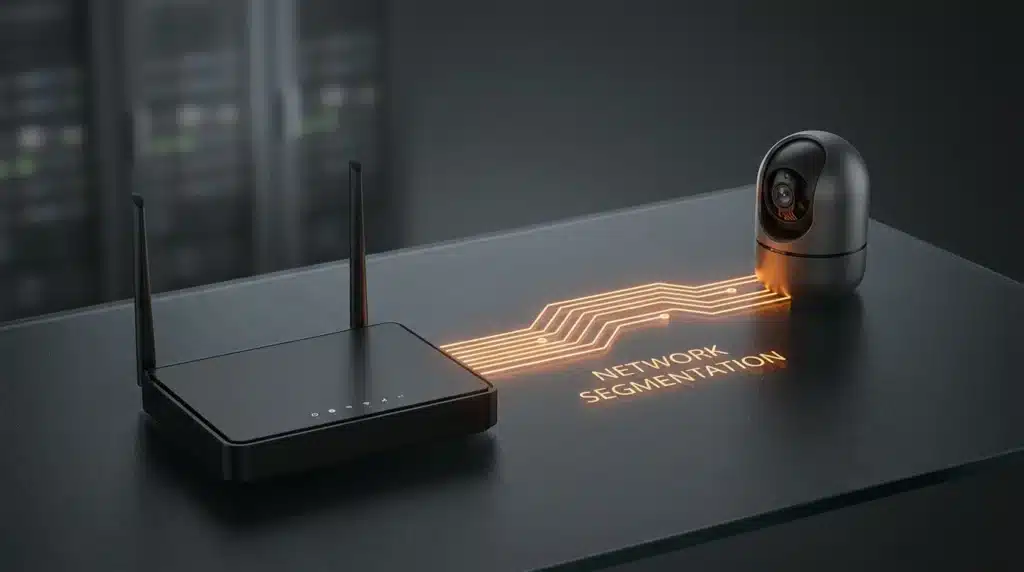
Should Cameras Share a Network With Your Laptop?
No — cameras should sit on a separate network from your laptop and phone, because if a camera does get compromised, an isolated network keeps the intruder from reaching your more sensitive devices.
Most modern routers include a “guest network” feature that creates a second Wi-Fi signal in your home. Put cameras, smart plugs, and other connected gadgets there; keep your laptop and banking apps on the main one.
For a step above a basic guest network, some routers support a fully isolated VLAN. You don’t need to understand the technical details — the goal is the same one banks use internally: keep sensitive systems away from anything that talks to the outside world. If your router doesn’t support this, a solid guest network is still a strong second choice, and it usually takes under five minutes to set up once you find the setting.
Watch this quick walkthrough on setting up a guest network for your smart devices:
If you’re shopping for a new camera and want a head start on security, brands like Arlo, Eufy, and Google Nest have a stronger track record of regular firmware updates than most no-name budget options.
| Secure Camera Setup | Risky Camera Setup | |
|---|---|---|
| Password | Unique, 12+ characters, never reused | Factory default or reused elsewhere |
| Network | Cameras on a separate guest network/VLAN | Cameras on the same network as laptops, banking apps |
| Login | Two-factor authentication enabled | Password alone |
| Encryption | WPA3 or WPA2-AES | WEP or plain WPA |
| Firmware | Auto-updates on | Updates ignored for months |
| Access list | Old users/devices removed regularly | Ex-roommates, contractors still have access |
Closing the Technical Gaps Most People Skip
What Encryption Setting Should Your Router Actually Use?
Your router should use WPA3 if your devices support it, or WPA2-AES if they don’t — both scramble your data so an intercepted Wi-Fi signal reads as gibberish instead of a usable video feed.
Check your router’s security settings for a section labeled “Security Mode.” If it still shows WEP or plain WPA, that’s outdated and crackable in minutes by a beginner with free software.
Does the “S” in HTTPS Actually Matter for a Camera Login?
Yes — if your camera’s login page doesn’t start with https, anything you type isn’t encrypted, and someone with access to your internet traffic could steal that login and reach your camera feed directly.
This check takes ten seconds: look at the address bar when you log in through a browser. No “s”? Dig into the camera’s settings for an encryption option, or consider a different model.
Which Router Features Are Actually Security Holes?
WPS (Wi-Fi Protected Setup) and UPnP (Universal Plug and Play) are both convenience features that double as open doors. WPS lets devices connect with a short PIN that’s simple to guess with free software; UPnP lets devices open holes in your firewall automatically, without asking first.
Turning both off takes a few clicks in your router settings and closes two backdoors that scanning tools actively look for.
Do’s and Don’ts for router settings:
- Do turn off remote management so settings can only change from inside your home network
- Don’t leave WPS enabled just because setup was easier that one time
- Do check your router’s firmware update setting and turn on auto-update if it’s available
- Don’t assume “it’s been fine for two years” means the settings are still current
Federal guidance from CISA recommends monitoring your network for unknown device connections and disabling remote router management as two of the simplest, highest-impact habits for any connected home.
Advanced Layers Once the Basics Are Handled
A VPN for your router adds a private, encrypted tunnel when you check your cameras from a coffee shop or airport — public Wi-Fi is one of the easiest places for someone to watch your traffic pass by.
MAC address filtering works like a guest list for your router. Every device has a unique ID card called a MAC address, and you can tell your router to only allow specific ones to connect — so even someone with your Wi-Fi password gets turned away if their device isn’t on the list.
Watch for quiet warning signs that don’t look like an obvious hack:
- The infrared light turning on when you’re not actively viewing the feed
- Unexplained panning or tilting on cameras that move
- Login notifications from cities you’ve never visited
If you notice any of these, change the password immediately from a different device, log out every connected session, and check your account’s active login list.
The Mistakes That Undo Good Security Habits
Reusing one password across every camera and account is the single most common mistake. If a random shopping site gets breached, that same password gets tried against every camera brand a hacker knows — a technique called credential stuffing.
Buying no-name budget cameras often means old software that never gets updated, and sometimes hard-coded “backdoors” left in for factory testing that never get closed. Sticking with brands that release regular firmware updates is worth the extra cost.
Placing cameras in bedrooms or bathrooms turns a minor breach into a serious one. Keep cameras focused on entry points — doors, windows, the garage — where a compromised feed shows far less.
Assuming a popular brand equals responsible security is a trust mistake, not a technical one. Popularity and security aren’t the same thing, and a well-known name still leaves you exposed if the basics above get skipped.
Forgetting to remove old access lingers longer than people realize. A former roommate, an ex-partner, a contractor who fixed the porch light — if their access was never revoked, they may still be able to view your camera today.
Panic-unplugging everything after a scary story trades one risk for another. No camera coverage isn’t a fix either; it just swaps a hacked-camera risk for a no-protection risk if something actually happens at the door.
A Simple Routine to Keep This Working Long-Term
Security here isn’t a one-time setup — it’s closer to checking smoke detector batteries. A quick routine keeps it working:
- Log into your router’s admin page every few months and review the connected devices list
- Change your camera and Wi-Fi passwords once or twice a year, and immediately after sharing access with a guest or repair person
- Keep camera hardware mounted high enough that a physical reset button isn’t reachable from outside
- Add a quick camera and router check to your nighttime home security checklist once a month
- Before traveling, review who has remote camera access — our guide to securing your home during vacation covers this in more detail
If you’re pairing cameras with physical locks as part of a bigger security plan, our comparison of smart locks versus traditional deadbolts and our guide to fixing doorbell camera blind spots are worth reading next. If you’re starting from scratch, our beginner’s home security guide is a good place to build the full picture.
Common Questions About Camera Privacy and Hacking
Can smart home cameras really be hacked?
Yes, and it happens more often through weak or reused passwords than advanced hacking skills. Unique passwords and two-factor authentication block most attempts on their own.
How do I know if my camera has been hacked?
Look for unfamiliar login locations in the app’s activity log, unexpected camera movement, or the infrared light turning on when you’re not viewing the feed. If anything feels off, change the password right away.
Is it safe to put a camera in my baby’s room?
It can be, with extra care — strong encryption, a unique password, two-factor authentication, and ideally a model that supports local storage instead of only the cloud.
Do I need a paid subscription for my camera to stay secure?
No. A subscription usually pays for extended cloud video storage; core security features like encryption and two-factor login are typically included free.
Can someone hack my camera through my Wi-Fi even if the camera itself is secure?
Yes — this is one of the most common paths in. A weak router password means a hacker doesn’t need to touch the camera at all; they just need onto your network first.
Your Quick Action Checklist
- Changed the default camera password to a unique one
- Set a separate, different password for the router itself
- Turned on two-factor authentication where available
- Confirmed the camera login page starts with https
- Set up a guest network (or VLAN) for smart devices
- Turned off WPS and UPnP on the router
- Set firmware and app updates to automatic where possible
- Reviewed camera placement in private rooms
- Removed access for anyone who no longer needs it
I still think back to that login screen I didn’t recognize. It scared me, honestly — but it also pushed me to actually learn this instead of just hoping nothing would happen. That’s the habit I keep coming back to here on Securely Life: don’t wait for the scary moment, fix the gap before it finds you. You don’t need a scary moment of your own to get started; pick one item off that checklist and do it before you close this tab.
If something about your specific camera model or router setting feels off, it’s worth checking the manufacturer’s official support page or a local IT professional before making changes — settings and menus vary enough between brands that a generic guide can only get you most of the way there.