Imagine you are sitting in a cozy cafe, enjoying a warm cup of coffee. You connect to the “Free Guest Wi-Fi” to check your bank balance or scroll through social media.
Everything feels normal, and you feel productive while the world passes by outside. However, just two tables away, someone might be watching every single move you make online.
They aren’t looking at your screen; they are “sniffing” the air for your data. Within minutes, they could have your passwords, your credit card numbers, and your full name.
The struggle of identity theft is that it often happens when we are most relaxed. We trust these open networks because they are convenient and everywhere. But that convenience comes with a heavy price that many people don’t realize until it is too late.
Why Finding a Real Solution Feels So Hard
- The Password Fallacy: Most people believe that a simple password on their phone is enough to protect their data.
- The Honeypot Trap: We often get tricked by “fake” networks that use names like “Airport_Free_WiFi” or “Coffee_Shop_Guest.”
- Tech Jargon Barriers: There is a lot of confusing advice online that makes people think they need to be a tech genius to stay safe.
- The Padlock Myth: Many users think that if a website has a little lock icon, they are 100% safe from all types of hackers.
- Speed Over Safety: We tend to prioritize speed and data savings over our own privacy and financial safety.
- Passive Connections: It is easy to forget that your phone is constantly searching for and connecting to old networks without you knowing.
How Digital Insecurity Destroys Your Peace of Mind
- Constant Paranoia: You start to wonder if every notification on your phone is a sign that your account was hacked.
- Loss of Control: Seeing your hard-earned money disappear or your identity used by a stranger feels like a violation of your soul.
- Fear of Technology: Instead of enjoying the digital world, you start to see every device as a potential trap.
- Stressful Recoveries: Spending months calling banks and police to fix your credit score takes a massive toll on your mental health.
- Broken Trust: You stop trusting the services and places you used to love because you don’t feel safe there anymore.
This reality is something thousands of people face every day across the world. Identity theft isn’t just about money; it is about the theft of your reputation and time.
When someone takes your identity, they take your future ability to buy a house, get a loan, or even get a job. The scary part is that these digital thieves are getting smarter.
They don’t look like criminals in movies; they look like a student with a laptop in a library. They wait for you to be lazy with your settings so they can strike.
If you have ever felt that “gut feeling” that a public network was a bit off, you were probably right. This guide is here to turn that fear into confidence and power. You don’t need expensive tools; you just need to change how you connect to the world.
10 Essential Steps to Master Public Wi-Fi Security
Step 1: Deploy a Virtual Private Network (VPN)
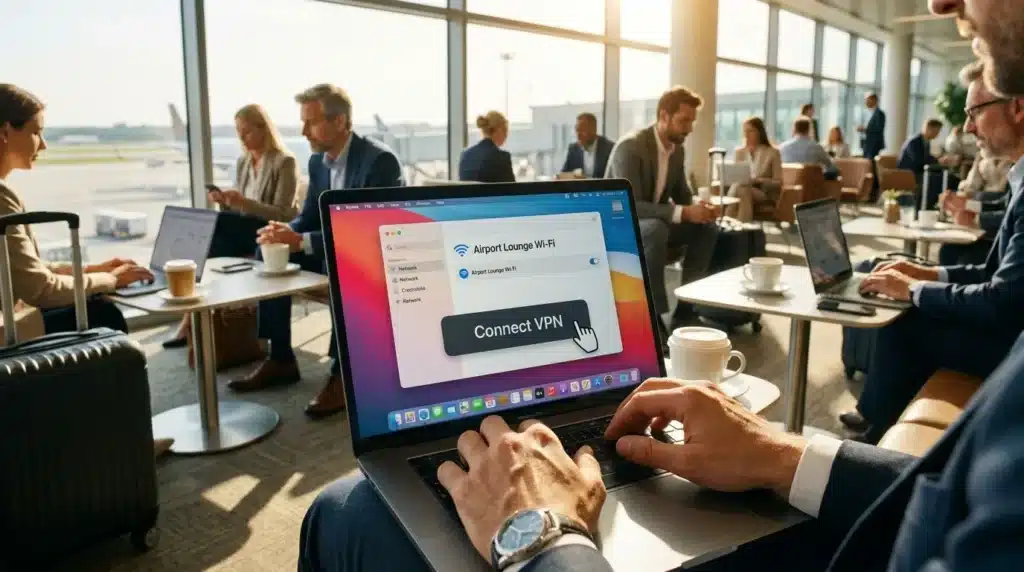
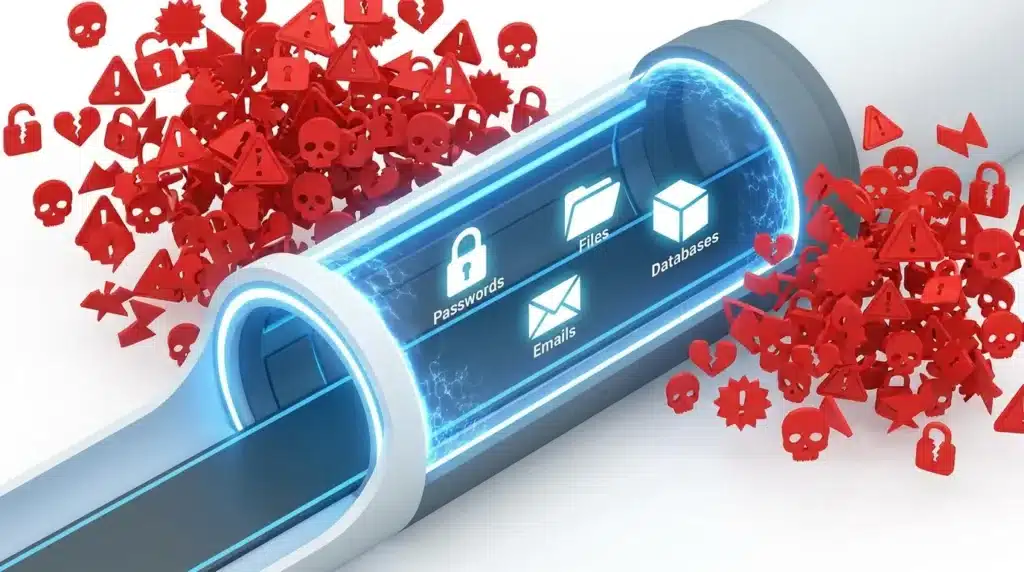
Think of a public Wi-Fi network like a crowded room where everyone is shouting their secrets. A VPN (Virtual Private Network) is like a private, soundproof tunnel that goes through that room.
When you use a VPN, your data is turned into a secret code before it ever leaves your device. If a hacker tries to grab your info, all they see is jumbled nonsense that makes no sense to them.
Many people think VPNs are slow or hard to use, but that isn’t true anymore. Most modern apps are just a “one-click” setup on your phone or laptop. You simply turn it on, and you are immediately invisible to anyone trying to watch the network.
Step 2: Mask Your IP and Physical Location
A VPN also hides your physical location. This makes it harder for websites and trackers to build a profile about who you are. By masking your IP address, you are taking back control of your digital footprint.
“Using public Wi-Fi without a VPN is like driving on a high-speed highway without a seatbelt. You don’t expect to crash every day, but you wear it just in case.”
Step 3: Disable Wi-Fi Auto-Connect Features
Your smartphone is very “social” by nature. It is always looking for old friends, which in this case, are Wi-Fi networks you have used before. If you once connected to a “Starbucks” network, your phone will try to connect to anything with that name in the future.
Hackers use this habit to their advantage. They can set up a tiny device that tells your phone, “Hey, I’m that Starbucks network you remember!” Your phone connects automatically, and the hacker now has a direct bridge into your device.
Go into your Wi-Fi settings right now and turn off the “Auto-join” or “Ask to join” features. This forces your phone to stay quiet until you manually tell it to connect.
Step 4: Block Public File-Sharing Features
Check your wireless file-sharing settings like AirDrop on iPhone or Quick Share on Android devices. If these features are set to “Everyone,” someone sitting in the same cafe can send malicious payloads directly to your screen.
Always set these sharing settings to “Contacts Only” or “Receiving Off” whenever you step into a public space. By turning off these features, you become a “ghost” in the digital world. Hackers look for the noisiest devices that are constantly shouting for a connection.
This vulnerability highlights why cybercriminals heavily rely on network interception. To understand the full technical mechanics behind this threat, you can read more about how a SIM swap attack operates and how it exploits telecom vulnerabilities.
Step 5: Enforce HTTPS Protocol Everywhere
Not all websites are created equal. Some use an old, unsafe language called HTTP, while others use a modern, safe language called HTTPS (the “S” stands for Secure).
When you are on a public network, never enter a password or credit card info into a site that doesn’t have that “S” in the URL. If the site is just HTTP, your data is sent in plain text. Anyone on the Wi-Fi can read it as easily as a billboard on the side of the road.
Step 6: Mandate App-Based Two-Factor Authentication (2FA)
Even if a hacker does manage to steal your password, you can stop them with Two-Factor Authentication (2FA). This is like having a second lock on your front door that requires a different key.
When 2FA is on, the hacker needs your password and a special code from your phone. Since they don’t have your physical device, they cannot get into your financial or social accounts.
Upgrading your verification methods is highly recommended by top cybersecurity experts globally. For an official framework on modern credential protection, you can review the official multi-factor authentication guidelines provided by the Cybersecurity and Infrastructure Security Agency (CISA).
Step 7: Protect Your DNS Settings from Poisoning Attacks
Every time you type a website name, your computer asks a “phone book” called a DNS server for the correct address. On public Wi-Fi, a hacker can poison this phone book.
They can make your browser go to a fake version of your bank even if you typed the address correctly. To stop this, you should activate DNS-over-HTTPS or use a secure private DNS service.
Most modern phones and browsers like Chrome or Firefox have this setting built-in. By turning it on, you make sure your “phone book” requests are encrypted, preventing anyone on the cafe Wi-Fi from redirecting your traffic to a scam site.
Step 8: Flush Your Browser Cache and Session Cookies
Even if you don’t type a password, your browser stores “cookies” that keep you logged in to sites like Facebook or Gmail. A clever thief can steal these cookies from an open network and impersonate you without ever needing your login credentials.
I always recommend clearing your browser cache and cookies before you connect to a public network. Better yet, use Incognito or Private mode for all your browsing in public spaces. When you close the private window, all those “session tokens” are deleted instantly.
Step 9: Turn Your Device into a Personal Hotspot
Using your phone as a “Personal Hotspot” is infinitely safer than using a public network. Your hotspot is encrypted, password-protected, and entirely under your control.
If you have an unlimited data plan, there is almost no reason to ever use public Wi-Fi. It might use a little more battery, but it keeps your identity out of the hands of criminals. This simple choice separates safe users from victims.
While keeping your system updated closes critical security loopholes, you should also change your device’s privacy configuration. Make sure to apply these hidden settings to stop apps from tracking your phone to block digital spies from gathering your sensitive financial behavior.
Step 10: Implement the “Forget Network” Rule
If you must use a public network, make sure to “Forget the Network” as soon as you are done using it. This prevents your device from trying to reconnect later when you aren’t paying attention.
Think of it like cleaning up your trash after a picnic. You don’t want to leave anything behind that someone else can use. Keeping a clean “Known Networks List” is a pro-level habit that keeps you safe in the long run.
Why Small Mistakes Lead to Big Problems
A common story I hear is from people who thought they were safe because they were “just checking the weather.” They didn’t realize that while their weather app was open, their email was syncing in the background.
Digital thieves don’t always need you to type something. They can steal the “session tokens” your phone uses to stay logged in to your accounts. Once they have that token, they can act as you without ever knowing your password.
This is why you must treat every public network with extreme caution. It doesn’t matter if you are at a high-end hotel or a local park. The risk is exactly the same because the underlying technology is the same.
The Science of “Wi-Fi Sniffing”
Hackers use small, inexpensive devices called “Wi-Fi Sniffers.” These devices act like a giant ear that listens to all the radio waves traveling through the air.
“When you use an open network without an active VPN, you are essentially broadcasting your private life on a public radio station for anyone to tune in.”
The business providing the Wi-Fi might have good intentions, but they cannot control who else is listening to the signal. Your safety is entirely in your own hands. By using encryption, you transform your data from a clear voice into a complex code.
Long-Term Security Guidelines for Every User
- The Monthly Digital Clean-Up: Set a reminder on your phone to check your “known networks” list once a month. Delete any Wi-Fi names you don’t recognize or no longer use.
- Monitor Your Identity Regularly: Use a free monitoring service to check if your email or phone number has been part of a public data breach.
- The “Secondary Device” Strategy: If you travel a lot, consider using a separate “travel phone” or tablet that doesn’t have your main banking apps installed. Keeping your most sensitive data on a home-only device is a pro-level move.
Common Mistakes to Avoid (The Pitfalls)
- Trusting Password-Protected Public Wi-Fi: Just because a hotel Wi-Fi has a password doesn’t mean it is safe. Every other guest has that same password, meaning they can intercept your unencrypted data just as easily.
- Banking While You Wait: It is tempting to pay a bill while waiting for a flight. But this is the number one target area for digital thieves. Avoid all financial tasks on public networks.
- Ignoring Browser Security Warnings: If you see a “Your connection is not private” warning on public Wi-Fi, disconnect immediately. It is a major red flag that the network has been compromised.
- Staying Logged In to Apps 24/7: When you are in a high-risk area like an airport, manually log out of your sensitive apps when you are done to destroy active session tokens.
- Falling for “Free” Offers: Hackers set up networks with names like “Free_High_Speed_Internet” to lure people in. Never give away personal info or your email just to get “free” access.
Frequently Asked Questions (FAQ)
Is public Wi-Fi safe if I only use it for a few minutes?
No, a hacker can scrape your data in less than a second. The moment you connect, your device starts sending handshake signals that contain information about you. Even a short connection is enough for a pro to exploit.
Can someone see my passwords if I use a public Wi-Fi network?
If you are on an HTTP site (without the “S”), yes, they can see your password in plain text. If you are on an HTTPS site or using a VPN, your password is encrypted. However, hackers can still use fake pages to trick you into typing it.
Is it safe to use my credit card on public Wi-Fi?
I strongly advise against it. Even if the store website is secure, an active fake network can capture your traffic. If you must buy something, switch to your phone’s mobile data instead of the free cafe Wi-Fi.
Does using Incognito mode make public Wi-Fi safe?
No, Incognito mode only stops your browser from saving your history on your own computer. It does nothing to protect the data that travels through the air to the Wi-Fi router. You still need a VPN.
How can I tell if a Wi-Fi network is a fake “Honey Pot”?
It is very hard to tell just by the name. If you see two networks with almost the same name, one is likely a trap. The safest rule is to assume all public networks are untorn and untrustworthy.
Your Path to a Secure Digital Life
You deserve to enjoy the freedom of the modern world without the fear of someone stealing your life. Digital safety is not about being afraid; it is about being prepared. By taking these small steps, you are building a shield that is very hard for thieves to break.
Don’t wait until you are at the airport to download a VPN or check your settings. Do it right now while you are on your safe home network. Turn off your auto-connect and set up your 2FA today.
“Your identity is your most valuable asset. Keep it safe, keep it private, and keep it yours.”
Once these habits are part of your life, they become second nature. You will feel a sense of calm and control every time you open your laptop in a new place. You have the power to stay safe in a connected world—now go out and use it!