Imagine sitting at your desk, typing a private email or checking your bank balance. Everything feels normal. However, deep inside your computer’s code, a hidden spyware program could be recording your every keystroke. This isn’t just a technical glitch—it is a direct violation of your home, privacy, and personal life.
The feeling of being watched without seeing the watcher is a modern nightmare. You might notice your mouse moving slightly on its own or your webcam light flickering for a split second. These small anomalies trigger a deep sense of unease, making you feel unsafe in your own digital space.
When your privacy is compromised, your computer no longer feels like a helpful tool; it feels like a traitor. This hidden threat can steal your photos, your passwords, and even your identity while you are sleeping.
Why Most People Fail to Find Hidden Spyware
Many users realize something is wrong with their system, but they struggle to fix it because the internet is flooded with bad advice. Here is why uncovering the truth about spyware is so difficult for the average user:
- Reliance on Basic Software: Most users think a standard, free antivirus is enough. However, professional spyware is specifically engineered to bypass common security checks.
- Deceptive Removal Tools: Victims often download “free spyware scanners” that are actually malware in disguise, making the original problem significantly worse.
- Deeply Hidden Files: Modern spyware does not sit in your “Downloads” folder. It hides inside system roots with names that mimic official Windows updates.
- Information Overload: Technical forums often use confusing jargon, causing regular users to give up before they even start the cleaning process.
- Ignoring Small Signs: People frequently blame a slow computer on “old age” rather than realizing a background program is stealing data in real-time.
The Mental Toll of a Compromised Computer
Living with the constant fear of spyware does more than just slow down your PC; it creates a heavy burden on your mental well-being.
- Loss of Trust: You start to doubt every link you click, leading to constant anxiety while working or relaxing online.
- Digital Paranoia: The simple act of entering a credit card number becomes a stressful event because you don’t know who might be intercepting the data.
- Feeling Powerless: Technology should empower us, but spyware makes you feel like a victim in a world you don’t fully understand.
- Social Withdrawal: Some individuals even stop communicating online because they fear their private conversations are being monitored by strangers.
The struggle is real, and it is completely okay to feel overwhelmed by it. However, you are not powerless, and you do not need to be a coding genius to take back control of your machine.
The Reality of Modern Digital Spying
Spyware has evolved from simple “prank” programs into highly sophisticated tools used for financial theft and personal stalking. In the past, you would know you had a virus because your computer would crash or show big, red pop-ups. Today, the best spyware is completely silent.
It is designed to stay hidden for months or even years. It uses a tiny amount of your CPU power so you don’t notice a performance drop, and it sends your data to remote servers in small packets to avoid triggering network alarms.
This “silent war” for your data is happening right now. Hackers and malicious developers are constantly finding new ways to hide their tracks. They use rootkits that load before your operating system even starts, making them invisible to standard tools.
The struggle to stay safe is constant, but the first step to winning is awareness. Once you understand how these programs hide, they lose their power over you. You can move from a state of fear to a state of active protection.
A Practical Guide to Unmasking Hidden Spyware
You do not need to buy expensive software or hire a technician to start investigating your PC. Most of the tools you need are already built into your system; you just need to know where to look. Follow these steps to begin your digital cleanup.
Step 1: Investigating the Task Manager for Unusual Activity
Your Task Manager is the “brain monitor” of your computer. It shows every single heartbeat and breath your system takes.
- Press Ctrl + Shift + Esc to open it.
- Click on “More Details” to see the full list of running processes.
- Look for anything that is using a high amount of CPU or Network resources even when you are idle.
Spyware needs to “talk” to its owner, so it will often show up as a process with a strange, random name like xhgt32.exe or something that mimics a real service like SystemUpdate.exe (note the lack of spaces or slight misspellings).
Pro Tip: Right-click on any suspicious process and select “Search Online.” If the search results show that other people are asking about this file or if it’s flagged as “Unknown,” you have found your first clue.
Step 2: Monitoring Your Outgoing Network Traffic
Think of your computer like a house. Spyware is like a thief trying to carry your furniture out the back door. To catch them, you need to watch the exits.
Your computer is always sending small bits of data for updates, but spyware sends large amounts of data to unknown locations. You can use a built-in tool called Resource Monitor to see exactly where your data is going.
- Type “Resource Monitor” in your Windows search bar and open it.
- Click on the “Network” tab.
- Review the list of “Processes with Network Activity.”
Look for processes that are connected to IP addresses you don’t recognize. If you see a random process sending data to a server in a foreign country while your browser is closed, that is a huge red flag.
Real-life data shows that most spyware transmits data in the middle of the night or when the computer is idle to avoid detection. By checking this list, you are looking directly at the security camera of your internet connection.
Step 3: Checking for Unauthorized Browser Extensions and Redirects
Your web browser is the most common entry point for trackers. Spyware often hides as a “helpful” extension that promises to save you money or manage your passwords.
- Go to your browser settings and check your Extensions or Add-ons list.
- If you see anything there that you did not personally install—remove it immediately.
- Pay close attention to your search engine. If you type a search into Google but the results show up on a strange website, your browser has been hijacked.
This is a form of spyware that watches what you search for and redirects you to sites that steal your info. Check your “Home Page” settings and your “Default Search Engine” settings. If these have changed without your permission, a malicious script is likely running.
Step 4: Analyzing System Startup Programs
When you turn on your computer, a list of programs starts automatically. Spyware loves to hide here so it can start spying the moment you log in.
- Open Task Manager and click on the Startup tab.
- Look for items with a “High” startup impact.
- If you see a program with “Publisher: Not Verified” or a blank name, disable it immediately.
Disabling these won’t hurt your computer; it will just prevent them from running until you manually open them. Many users find that after disabling these mystery items, their computer runs faster and strange pop-ups disappear.
Step 5: Monitoring the Role of Webcams and Microphones
Modern privacy settings are your best friend. Both Windows and Mac now have icons that appear in the taskbar when an app is actively using your camera or mic.
If you see a small microphone icon or a camera light turn on when you are just reading a blog post, someone is likely listening or watching.
- Go into your “Privacy & Security” settings.
- Look at the “App Permissions” section.
- Review the list of apps that have permission to use your camera. If a calculator app or a random game has permission, revoke it immediately.
Step 6: Using Built-In Security Scans Effectively
While basic antivirus can miss things, Windows Microsoft Defender is actually quite powerful if you use the right settings. Instead of a “Quick Scan,” you should always run an “Offline Scan.”
This is a special mode where your computer restarts and scans for viruses before the operating system even loads. This is critical because some spyware can “hide” from scanners while Windows is running. By scanning in offline mode, the spyware has nowhere to run.
Staying Vigilant with Physical Signs
Sometimes the best detection tool isn’t software at all; it’s your own observation.
- Is your laptop getting unusually hot even when you are just looking at a photo?
- Is your fan spinning at maximum speed for no reason?
Processing data and sending it over the web requires energy. That energy creates heat. If your computer is working hard while you are doing nothing, it is likely doing work for someone else.
Treat your computer like a car. If you hear a weird noise or the engine gets too hot, you check it out. These physical symptoms are often the first cry for help from a system infected with spyware.
Uncovering the Deep Secrets of System Integrity
Searching for spyware is like being a digital detective. Now, we need to go much deeper into the hidden corners of your operating system. Professional hackers do not leave their files in plain sight. They hide them in places that the average person never thinks to check.
Exposing Secret Administrative Accounts
Sometimes, spyware creates its own “backdoor” by making a new user account that you cannot see on your standard login screen. This is one of the most dangerous ways a hacker maintains control over your machine.
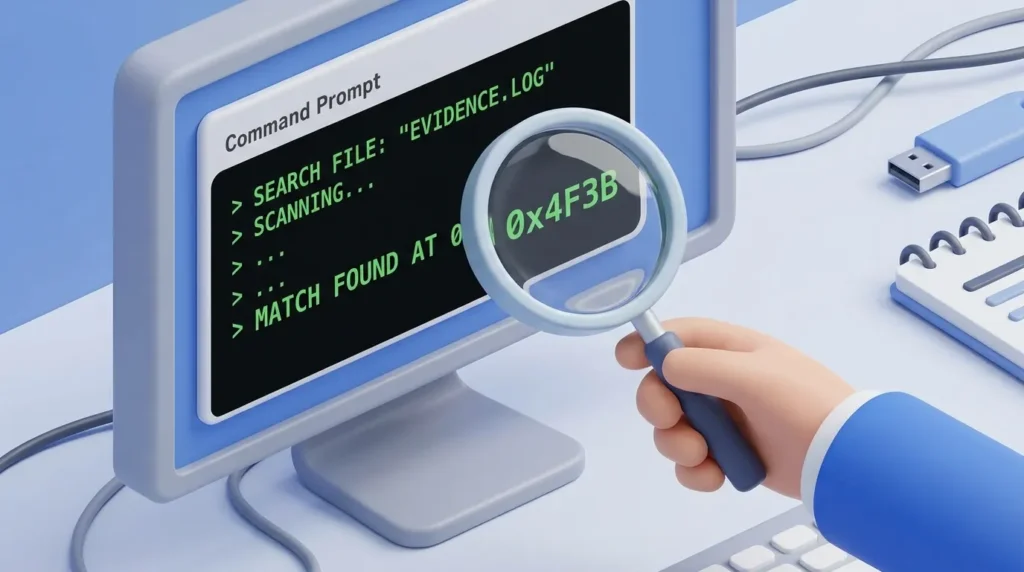
To check this, you can use the Command Prompt (CMD):
- Type “cmd” in your search bar.
- Right-click it and select “Run as Administrator.”
- Once the black window opens, type the command
net userand press Enter.
You will see a list of every account registered on your machine. If you see a name you do not recognize, like “Guest1” or a random string of numbers, someone else might have access to your files.
Auditing Your Hidden Network Pathfinders (Hosts File)
Every time you type a website name, your computer uses a “map” to find that site. This map is called the Hosts file. Spyware can edit this file to redirect your traffic.
For example, you might type mybank.com in your browser, but the edited Hosts file sends you to a fake phishing version of the bank website.
- You can find this file at:
C:\Windows\System32\drivers\etc\hosts - Open it with Notepad to see what is inside.
A clean file should have almost nothing in it except for a few lines starting with a “#” symbol. If you see long lists of website names followed by strange IP addresses, your computer has been hijacked. Deleting these unauthorized lines can instantly stop spyware from stealing your login details.
Scanning for Rogue DNS Servers
Think of a DNS server as the phonebook of the internet. Usually, your internet provider gives you this phonebook automatically. However, advanced spyware can change your settings to use a malicious DNS server.
When this happens, every site you visit can be monitored or blocked by a third party.
- Go to your Network Settings and look at your “IPv4 Properties.”
- If you see manual DNS numbers that you didn’t put there, someone else is routing your traffic.
- Setting your DNS back to “Obtain automatically” or using a trusted provider like Google (8.8.8.8) or Cloudflare (1.1.1.1) can break the link between you and the spy.
A Long-Term Strategy for Digital Hygiene
Finding spyware once is great, but keeping it away forever requires a change in habits.
- Keep Your OS Updated: These updates contain crucial security patches. When you skip an update, you leave a window wide open for hackers.
- Beware of Bundled Software: When downloading free tools, always choose Custom Installation and uncheck everything you don’t recognize. This is how 90% of spyware gets onto personal computers.
- Backup Remotely: Create a regular backup of your most important files on an external hard drive or secure cloud storage.
Dangerous Errors That Leave Your Data Vulnerable
Even tech-savvy people make mistakes when it comes to computer security. One of the biggest mistakes is trusting “Scareware” pop-ups. You might see a window saying, “Your PC is infected! Click here to clean it!” Clicking that button is what actually installs the spyware.
Another major error is password reuse. If spyware steals your password for a small gaming site, the hacker will immediately try it on your bank account. Using a dedicated password manager limits the blast radius of a single breach.
Lastly, people often think that a “Factory Reset” solves everything. While it helps, some modern spyware can hide in the recovery partition of your drive, meaning the spy survives the wipe. This is why advanced scanning methods are mandatory.
The Real Consequences of Ignoring the Signs
Ignoring a slow computer or strange network behavior can lead to serious real-world problems. If a hacker gets into your social media, they can send scams to your friends and family using your name.
Your financial safety is also at high risk. Spyware known as Keyloggers records every button you press, exposing your credit cards, home address, and Social Security Number (SSN). The mental stress of dealing with identity theft can take months or even years to resolve.
Answers to Your Most Common Security Questions (FAQ)
Can I get spyware just by visiting a website?
Yes, this is called a “drive-by download.” If your browser is out of date, a malicious site can force a small piece of malicious code onto your computer without you clicking anything.
Does clearing my history or cookies delete spyware?
No, clearing history only removes the list of sites you visited. Spyware lives deep within your system files, not your browser storage. You need a dedicated system scan to remove it.
Why does my computer fan get so loud when I am not using it?
This is a major warning sign. It usually means a background program is maxing out your processor’s power. Spyware might be using your PC to mine cryptocurrency or send out millions of spam emails.
Is it safe to use public Wi-Fi if I have an antivirus?
An antivirus helps, but public Wi-Fi is still a playground for spies. If you must use public Wi-Fi, always use a secure VPN to encrypt your connection so attackers cannot intercept your data packet traffic.
How often should I check for hidden accounts and host file changes?
For most users, a quick check once a month is plenty. However, if you notice your computer behaving strangely, you should check your configurations immediately.
Reclaiming Your Peace of Mind and Digital Freedom
You have taken the time to learn the secrets of digital protection, and that is a massive win. Most people stay in the dark, but you now have the actionable tools to shine a light on hidden threats. Your computer should be a place of creativity, not a source of constant anxiety.
Start today by running that first net user command in your Command Prompt. It only takes a few seconds, but it gives you back the control and digital privacy you deserve. Stay alert, keep your software updated, and enjoy the freedom of a clean, secure PC!